Hi everyone,
In my Dynamo workflow, I currently have 5 separate Python scripts that each read data from the same Excel file. This means the file gets opened 5 times, which is quite heavy on the system.
Is there a more efficient approach? For example, could I load the entire Excel sheet into memory once (e.g., into a variable or data structure) and then let the 5 Python scripts query that data instead of repeatedly accessing the file?
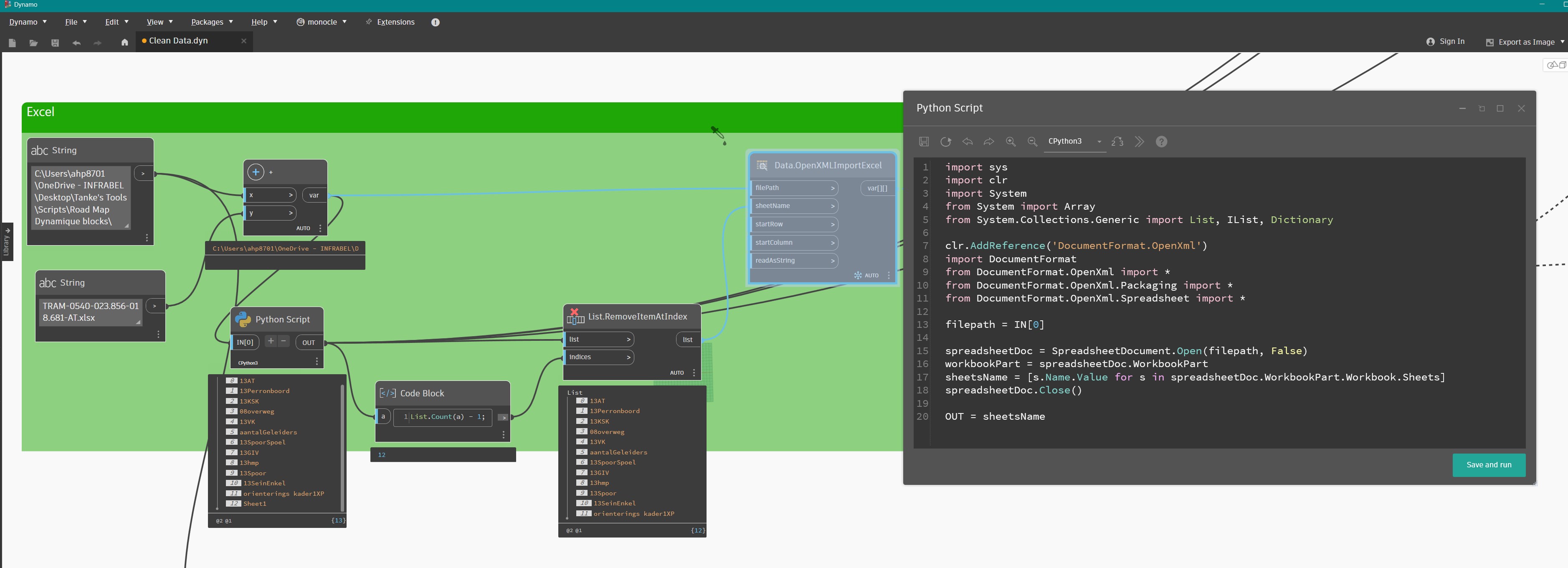
Hola amigo @d.kelfkens buenas. I get a similar situation, i guess you are open 5 times the file to read 5 diferent sheets, what you can do is make an phyton script to open the excel file read the sheets names and close the file, then you can use ImportExcel node to read the data from each sheet in the list that you previosly get, this way you only open the file 1 time and clean the data. I’m not the autor of this script i let you also the original post, you can copy the code there!!
It would be helpful if you explained more about why you’re currently needing to read the same file 5 times. Everything explained above can be done with the out of the box nodes. There’s no need to read an unchanged file multiple times, just access everything you need all at once and then reuse the imported values as needed.
It looks like you’re accessing the same sheets and just pulling different data ranges for different use cases. There’s absolutely no need to do that in 5 different python nodes. You can put all your “functions” into one python node and do the exact same thing while only accessing the file once. Just create separate variables for each data range you require and run the appropriate functions on the appropriate data ranges. You can store those outputs separately (in their own sublist) or combined into a single output. It all depends on what you need.