Hi,
Within my families I found some additional Family Types.
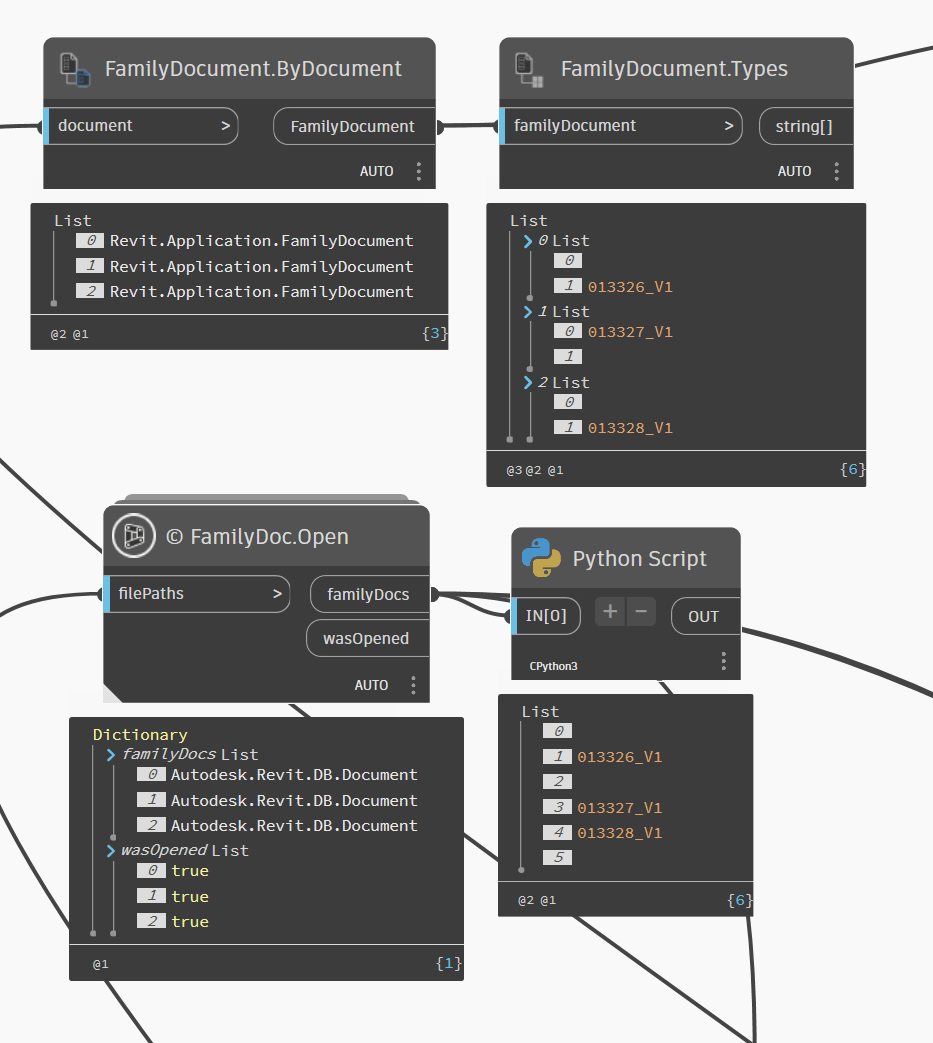
Previously I ran a Dynamo Script which added and filled Parameters to those families (background opened). Most of those families already had a type, (but some had no Type at all). Within the Families without a Type it seems that this “Dummy” Type was created. Later on real Types were applied to the Revit Families (without Types) manually, but the “Dummy” Type seems to be still existing in Dynamo/Revit API. The weird thing ist: mostly those Dummy Types are not visible in Revit, but rarely a Family seems to have no Type, but with clickling on the dropdown Menu in Revit, die real Type can be found (occurs only within the Family Editor - in Revit Projects, only the real Type is visible)
Is there a way to delete/purge such Dummy Types with Dynamo / Python? In the Screenshot I added what Dynamo sees for DB or Family Documents and the existing Types per Document.
Thanks!
Hey,
Super wierd! If you can get an ID out of it, you can (probably) delete it? Unless I’m misunderstanding the problem? It’s going to inherit from Element…
Hope that helps,
Mark
Thanks! - Not quite sure yet, I’m trying to get the ID out but seem to only get an Empty List. I created a Python Script to read out all type names, the current type (which is the correct one) und die IDs.
I added the Python script as well. (Still working on it..) 
import clr
clr.AddReference(‘RevitServices’)
from RevitServices.Persistence import DocumentManager
clr.AddReference(‘RevitAPI’)
from Autodesk.Revit.DB import FamilyManager, ElementId
docs = IN[0] # List of family documents
all_type_names =
current_type_names =
all_type_ids =
for doc in docs:
type_names =
type_ids =
current_name = None
# Check if it's a family document
if hasattr(doc, "IsFamilyDocument") **and** doc.IsFamilyDocument:
    try:
        fmanager = doc.FamilyManager
        types = fmanager.Types  # All types in the family

        for t in types:
            try:
                type_names.append(t.Name)
                # Only add valid IDs
                eid = t.Id.IntegerValue
                if eid != -1:
                    type_ids.append(eid)
            except:
                continue

        # Current type
        current_type = fmanager.CurrentType
        if current_type:
            current_name = current_type.Name

    except:
        pass

all_type_names.append(type_names)
all_type_ids.append(type_ids)
current_type_names.append(current_name)
OUT = all_type_names, current_type_names, all_type_ids
What if you just pass the Id without converting to an integer? That’s depreciated in 2026 I think… It’s just .Value now…
Avoid using try/except and just ‘passing’ or ‘continuing’. Something can break there and you won’t see what/why.
It’s been a lifetime since I looked into this as it doesn’t offer much value for me (99/100 Revit users don’t worry about family documents at all, for better or worse), but I believe that in family documents there always has to be a ‘parent’ family type that isn’t in the UI, which is used for new type creation and this may be it. I wouldn’t recommend deleting it until you confirm as it can really mess with things if you do (i.e. you never get to open that family again as it’s permanently invalid).
Thanks for your reply!
Do you know whether there is any given possibility to find out if it’s a parent family type?
In most cases it seems to make no difference in Revit, but for a few is looks like that, which just seems weird:

I noticed that it was blank before you selected the ‘true’ name.
Can you rename the blank selection if you restart?
No I can only create a new type, but if I change any Parameter value in the blank Type and then create a new one, the new one has the same values as the blank Type (not the real Type) and the blank Type is gone.
Only guessing here as I don’t have anything ot test on/with, but…
It would see that the blank type is likely the ‘placeholder’ which was created when starting the family, but before the first type was generated. And as you hadn’t set the first type as the active type in the family the placeholder sticks around. Can you set the value, save as a new family file, and see if the types list changes between the original and the save as version?
If you get expected results there (no blank value), then you’ll want to look at setting the ‘current type’ somehow during the creation, or in bulk prior to saving the documents. The API call appears to be here: Revit API 2026 Documentation
1 Like
Pure speculative but:
- I think your Family Name are the same as the Type Name, correct? This could be the reason it is blank.
- You are opening the Family file from your project right? It might be worth to make a dedicated folder and save those families from your project into that folder. Then use Dynamo to open the families from that folder instead.
OR
Open the family file and save them first with a different script, then background open
1 Like
If you’re dealing with these at the project level my technique is to collect all FamilySymbol (s) elements where the family name (s.Family.Name) = family symbol name (s.Name), and the family is user created (s.Family.IsUserCreated), then rename them to something generic e.g. Typical. This is how I do it at work in my company add-in, works well.
In the family it’s probably a bit harder as the family technically has no exposed types. You could try getting the current family type from the FamilyManager class and create a new type off that if it provides one potentially, but would still need to clean out the old bad type in the project using the first technique anyway so I’d begin there.
1 Like
Thanks for all of your replies, all of the above comments helped to fix the problem!! 
So for future reference if anyone is dealing with a similar issue:
The only way for me to get rid of the empty/dummy types (which only occurred on Family Level, not on Project Level) was to Background Open the Families, change each CurrentType to one with a name (because sometimes the empty ones were the CurrentType, therefore without this step it didn’t work), then place the Families in a project and batch save out of the project to a directory.
I think the problem occurred as described by @RevitRobot because Family Name and Type Name were later on the same (after setting manually).
2 Likes
It took me a few Library Content management runs to fully internalise how it all works, so I’m glad I was able to help and that you fixed it.
2 Likes