I need to change cad layer colours to greyscale and this script works perfectly well in changing the object styles of import layers, but are there any nodes / packages that can simply override only in visibilty graphics / view template? Been searching for ages but not finding anything and regular category nodes don’t seem to work on imported categories. This project is using Revit 2024 and I’m useless at python etc. so wouldn’t even know where to start there 

anyone? is this even possible?
Hi @elton.williams you could try override in view maybe

Home.dyn (7.6 KB)

Thanks for your time guys but sorry, maybe i wasn’t specific enough.
In my script above I’m converting RGB to greyscale because Revit won’t PDF it as greyscale. Yes I could reprint the PDF as greyscale but we have coloured logos on our drawing sheets.
I tried both your suggestions but that just overrides the whole CAD file with a single colour, see my original image where I’ve read all the individual layer colours, then I’m trying to override the cad layers individually - but using visibility graphics not object styles
The last node in my original script is ImportInstance.SetObjectStyle, what I’m after is something like ImportInstance.SetVisibilityGraphics.
Is this even possible?
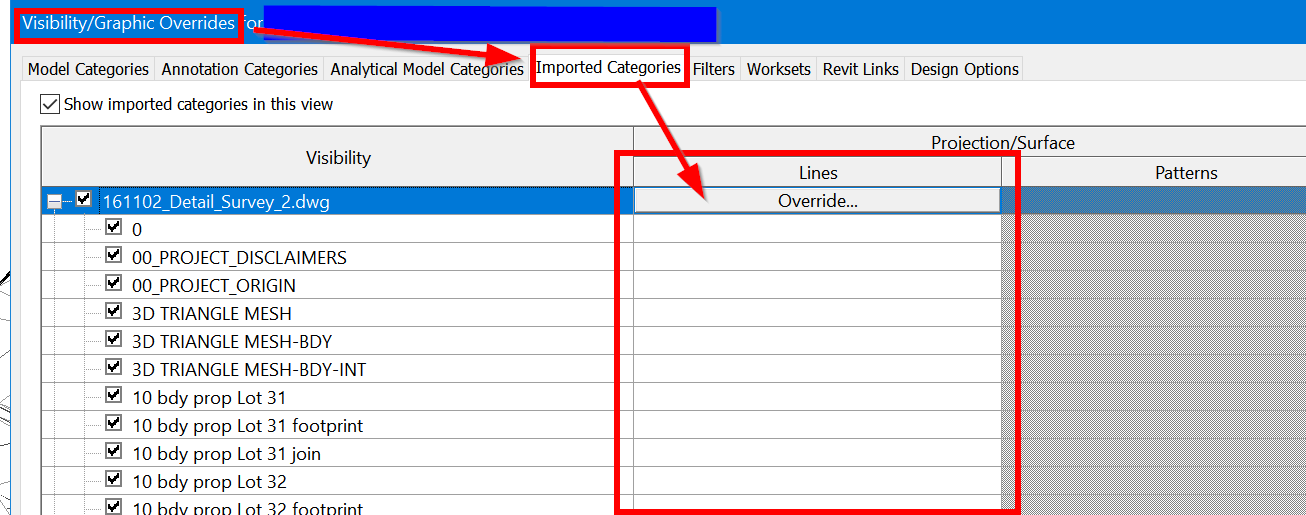

dont think its possible
1 Like
There is no node for this, mostly as there is no API for this as it is quite rare of a need - you can set it to black and white on import after all. It does come up though - I had to fight it once myself for 2x weekly print jobs on a big tower project.
My fix was each time we got updated base files I would open the consultant’s drawing in Civil3D or AutoCAD, run my purge, audit, purge, save it, then save it as a new file in the same directory with -BW added to the file name, change the layer colors, adjust any object or block color overrides, and then save the file. That process can likely be automated in Civil3D using a macro and/or Dynamo for Civil3D.
Now in Revit write a new Dynamo graph to change your cad link’s paths to the ‘BW’ file name (something like String.Replace(currentPath, “.dwg”, “-BW.dwg”);), and then print.
2 Likes
@jacob.small i tried running my dynamo script on a second copy of the cad file in revit - although it doesnt reach into unexploded cad blocks and they still stay coloured even though the rest goes to greyscale- so i guess ill be doing similar to what you describe. Ive never used civil3d so this might be the catalyst 
Thanks to all for the help.
1 Like

I am re-creating your script to change all my linked cad files colors to 8. but getting above warnings. I am very basic to Dynamo. I’m working on project setups, and although I’ve set all layers to Color 8, the same color doesn’t appear correctly in Revit. As a workaround, I’ve been manually changing them to RGB (128, 128, 128). I believe your script could save a lot of time and streamline this process.
Looking forward to your guidance.
You need to show us your script with what you’re trying to achieve. Typically to avoid confusion on these forums you would create a new post.
your first warning shows us that you are passing a ‘null’ value. start by trying to fix that.